 Underglow
Support
Need a hand? Most questions are answered below. If not, write to hello@underglowapp.com and we'll get back to you.
Set up your wallpaper
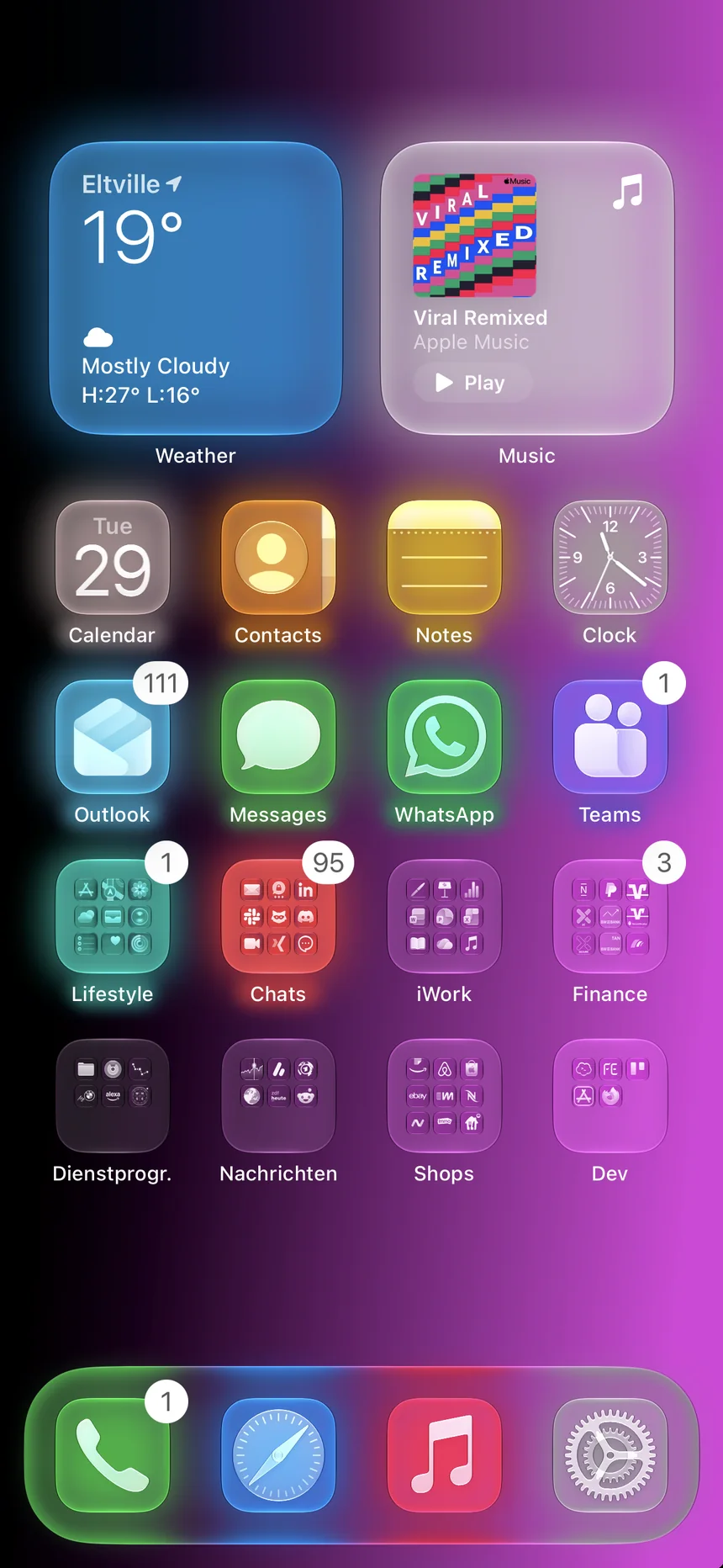
The glows only line up if iOS shows the wallpaper exactly as it was exported. Follow these steps once and you're set.
- Use Clear icons. Touch and hold the Home Screen, tap Edit > Customize, then choose Clear. Dark icons work too and give a halo look.
- Match the icon size. The Small or Large setting in Underglow must match Settings > Home Screen & App Library > Icon Size.
- Export. Tap Export in Underglow. The wallpaper is saved to Photos at your screen's full resolution.
- Open it in Photos. Tap Share, then Use as Wallpaper.
- Don't move it. Keep the default zoom and don't pinch or drag the image. Turn Perspective Zoom off.
- Set it for the Home Screen with Blur turned off.
Troubleshooting
The glows are slightly off from my icons
First check that the device and iOS version shown at the bottom left of the editor match your iPhone, and that the icon size matches your Home Screen setting. If it's still off, tap the device pill, then Verify Alignment. Import a screenshot of your Home Screen, compare it with the grid and nudge the values in 0.5 or 2 point steps. The correction is saved with that design.
The wallpaper looks zoomed or shifted after I set it
iOS moved the image. Set it again from Photos without pinching or dragging, and make sure Perspective Zoom and Blur are off.
Screenshot import doesn't find my apps
Use an unedited, portrait screenshot of the Home Screen from the same iPhone, taken with the same icon size selected in Underglow. Cropped or resized images can't be matched to a device.
My iPhone isn't detected
If Underglow doesn't recognize your model, it picks the closest screen size. You can choose your model by hand from the device pill. Supported layouts cover iPhone 13 through iPhone 17, including iPhone 16e and iPhone Air.
Underglow can't save to Photos
Underglow needs permission to add photos. Allow it in Settings > Privacy & Security > Photos > Underglow. If an export fails, your export credit is kept.
Purchases
What's free and what's paid?
The editor is free, including every glow and background tool, screenshot import and Verify Alignment. Saving a wallpaper to Photos needs either a Single Export for one design or Unlimited, a monthly subscription for unlimited exports and editing.
Why can't I edit a design I exported?
A Single Export pays for that exact design, so it becomes read-only. You can export it again at no cost and still adjust its alignment. Unlimited lets you edit every design.
How do I restore my purchases?
In Underglow, tap the ••• menu, then Purchases, then Restore Purchases. This restores Unlimited on any iPhone signed in to the same Apple Account. Single exports are consumable purchases, which Apple does not restore, so unused exports stay on the iPhone that bought them.
How do I cancel Unlimited?
Go to Settings > Apple Account > Subscriptions > Underglow. Cancel at least 24 hours before the renewal date to avoid being charged for the next month. Designs you exported stay in Photos.
How do I request a refund?
Purchases are processed by Apple. Request a refund at reportaproblem.apple.com.
Contact
Email hello@underglowapp.com. Please include your iPhone model, iOS version, and a screenshot of the problem if you can.